

Install your ZED Box Orin
Connection panel
All the connection ports are available in the front panel.

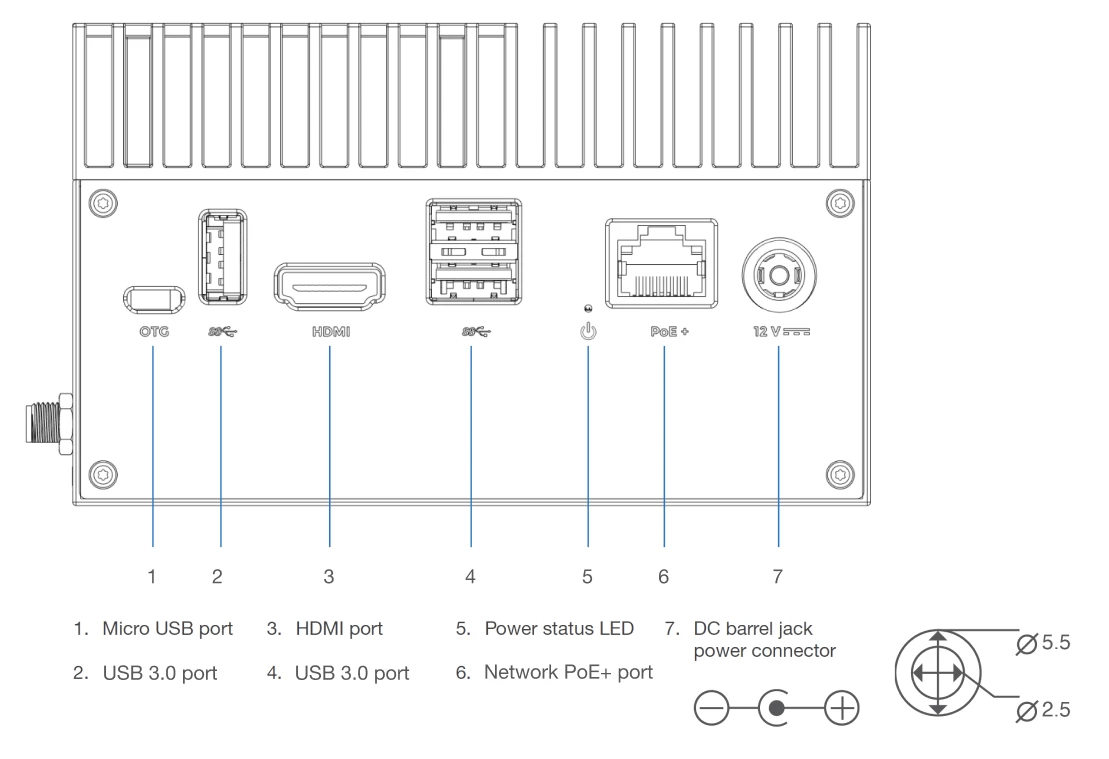
PoE+ specifications:
- Max Power Mode: 15 W
- Voltage: 42.5 ~ 57 V
- Current: 600 mA
- Cabling: Category 5
Installation
01. Plug in the power supply
Always unplug the power supply from the wall outlet before connecting or disconnecting the jack connector from the ZED Box. Plugging or unplugging the jack connector while the power supply is powered can generate high voltage spikes that may permanently damage the ZED Box carrier board.
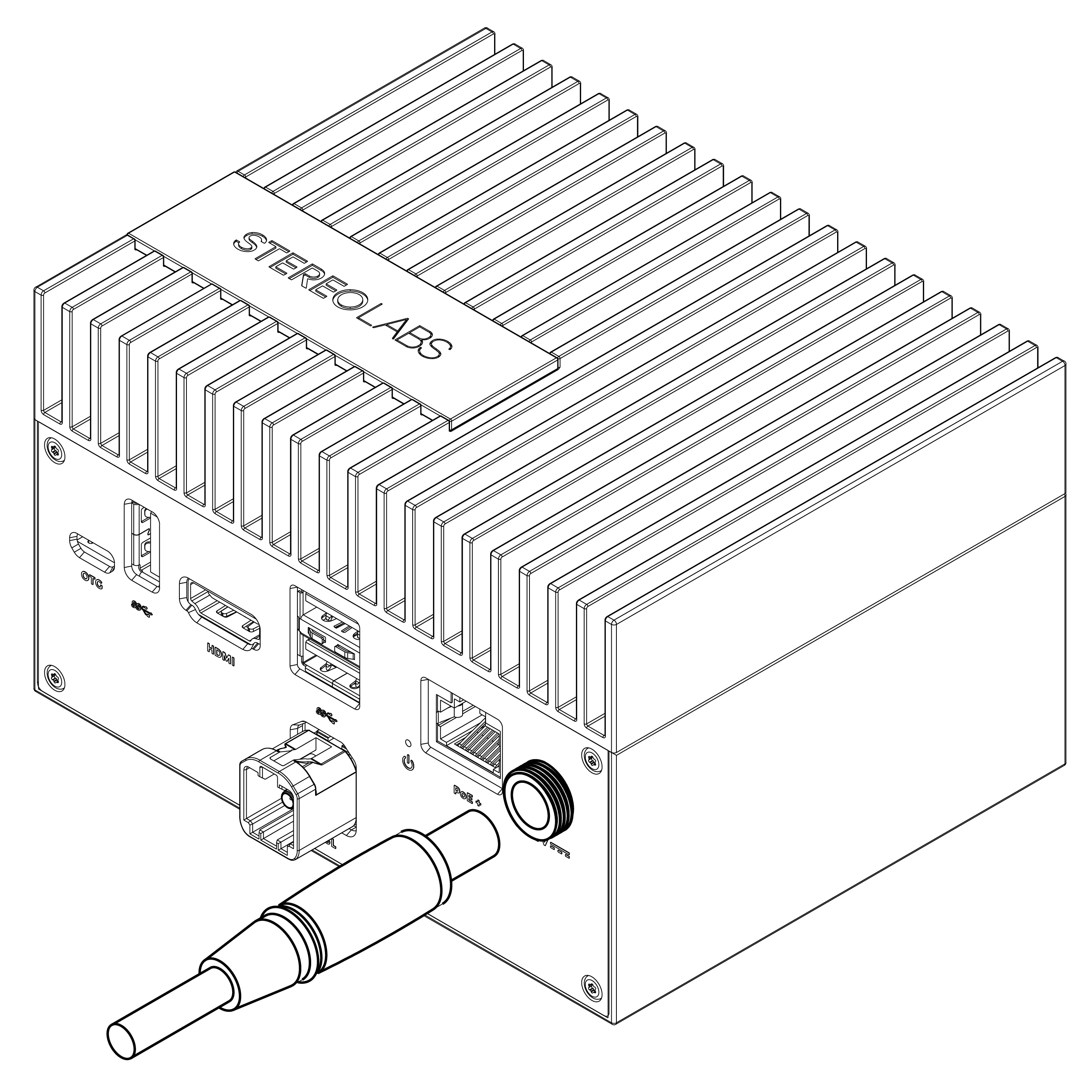
Connect the provided power supply to the jack connector, if you do not use the PoE+ feature.
With the power supplied by the jack connector, the ZED Box can use the 25W power mode.
You can supply the ZED Box with PoE+ instead of the jack connector. But in that case, do not exceed the 15W power mode on your ZED Box.
02. Connect to your network
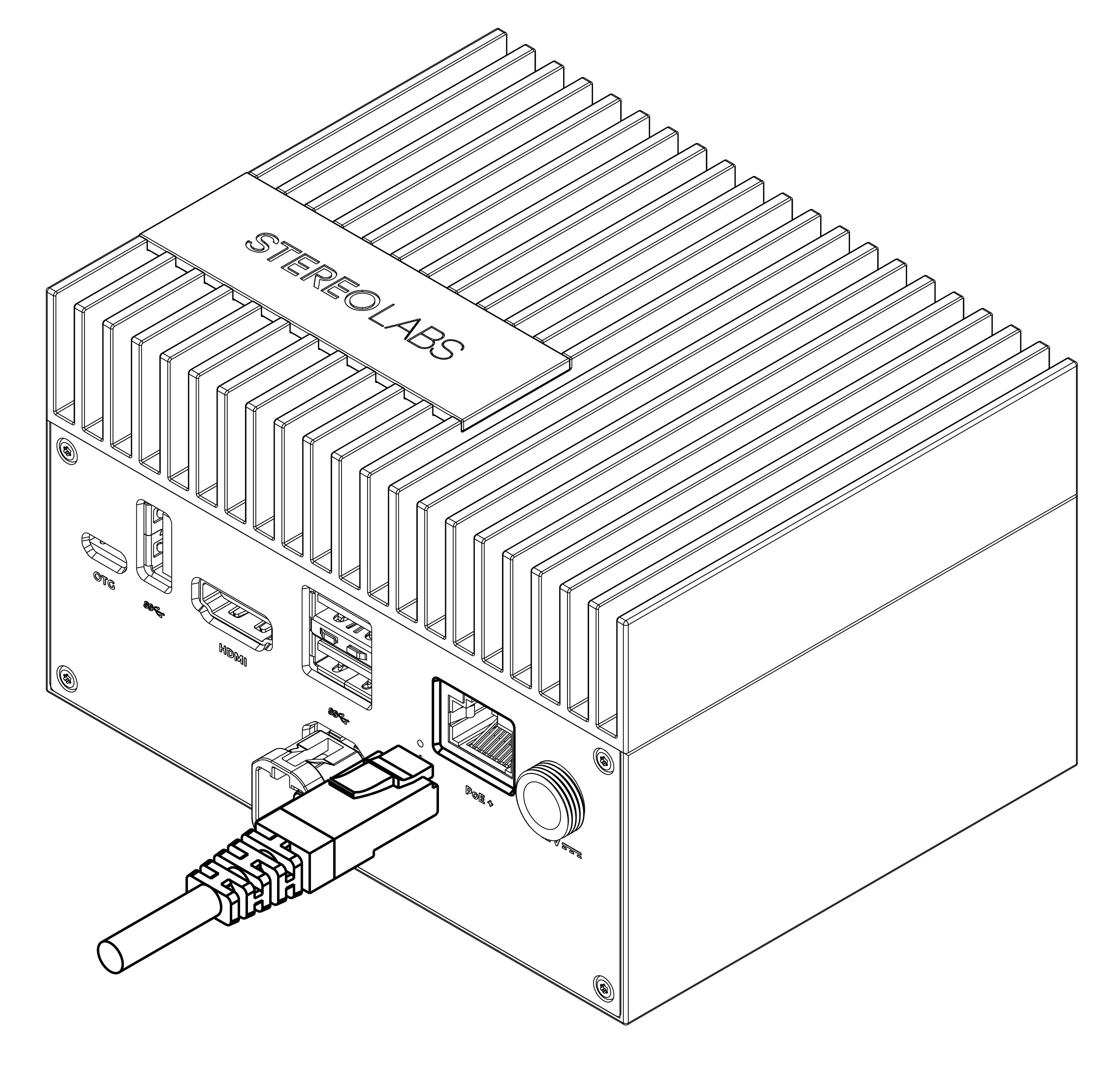
Connect to your network using the Ethernet port.
A PoE+-enabled switch allows you to power the system without using the jack connector.
In PoE+, do not exceed the 15W power mode on your ZED Box.
03. Connect to your display
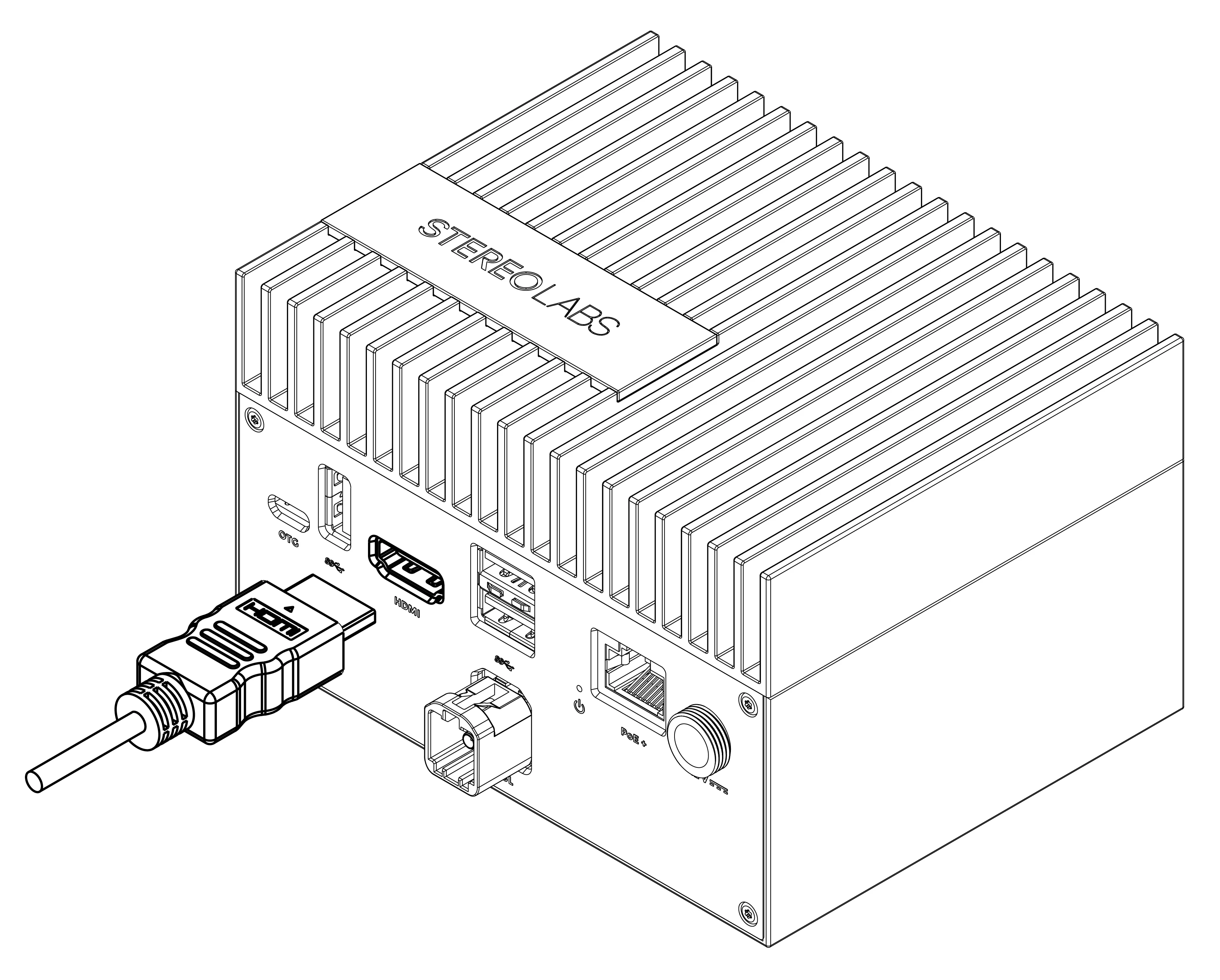
Connect to your display by using the HDMI port.
04. Connect your keyboard and mouse
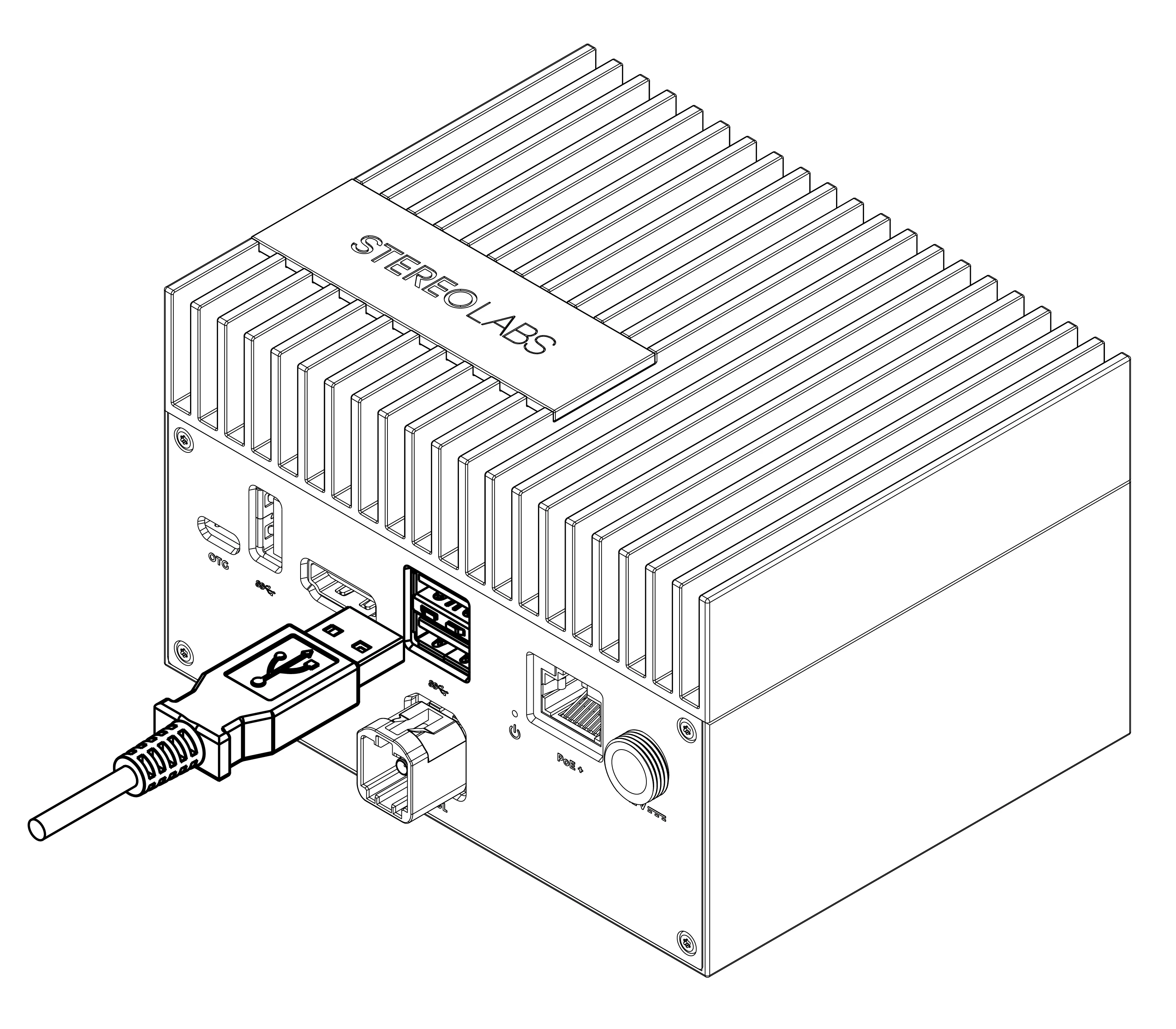
Connect your keyboard and mouse using the USB port and a USB hub.
05. Complete the operating system setup
System access credentials
To access the operating system upon first start-up, use the following default access credentials:
- Username: user
- Password: admin
For security reasons we suggest you change the default password after the first boot.
How to change the user password
Using a terminal console command
- Open a terminal console (
Ctrl+Alt+t) - Enter the
passwdcommand - Follow the indications
Using the Settings GUI menu
You can access the Settings menu in multiple ways:
From the Activities Menu
- Click on “Activities” in the top-left corner.
- Type “Settings” in the search bar.
- Click on the Settings app (gear icon).
From the System Tray
- Click on the top-right system menu (Wi-Fi, battery, and volume icons).
- Select “Settings” from the dropdown.
From the Terminal
-
Open a terminal (Ctrl + Alt + T).
-
Type the following command and press Enter:
Change the Default Password
- In the Settings menu, navigate to Users.
- Select your user account.
- Click “Password” and enter a new secure password.
- Save the changes and restart if necessary.
ZED SDK update procedure
Your ZED Box Orin comes with all the software you need already installed. Nonetheless, if you want to update the ZED SDK, you can follow these steps.
To download the latest version of the ZED SDK for your system, you need to know which JetPack version is currently installed. To do so, open the command prompt on your ZED Box and enter the following command line:
Command line result preview:
In this case, your JetPack version is then 5.1.1.
Then, go to www.stereolabs.com/developers/release, click on the “SDK Downloads” tab and scroll down to find the corresponding ZED SDK for the JetPack version of your NVIDIA® Jetson™ system.
To get started, learn more about the ZED SDK and start building apps today, go to www.stereolabs.com/developers.
06. Connect your ZED camera
06.a Connect your ZED USB camera
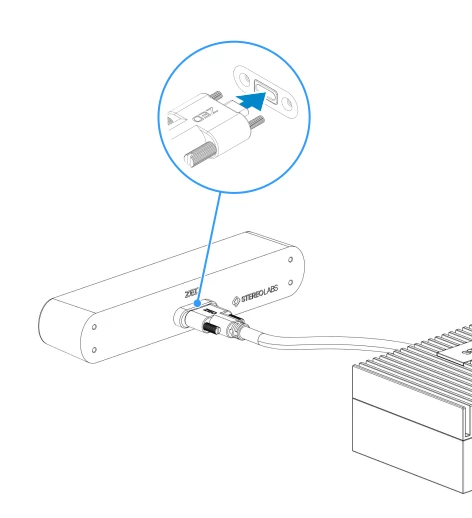
The ZED camera must be connected to the USB 3.0 port to be able to acquire data at maximum resolution and framerate.
06.b Connect your ZED GMSL camera
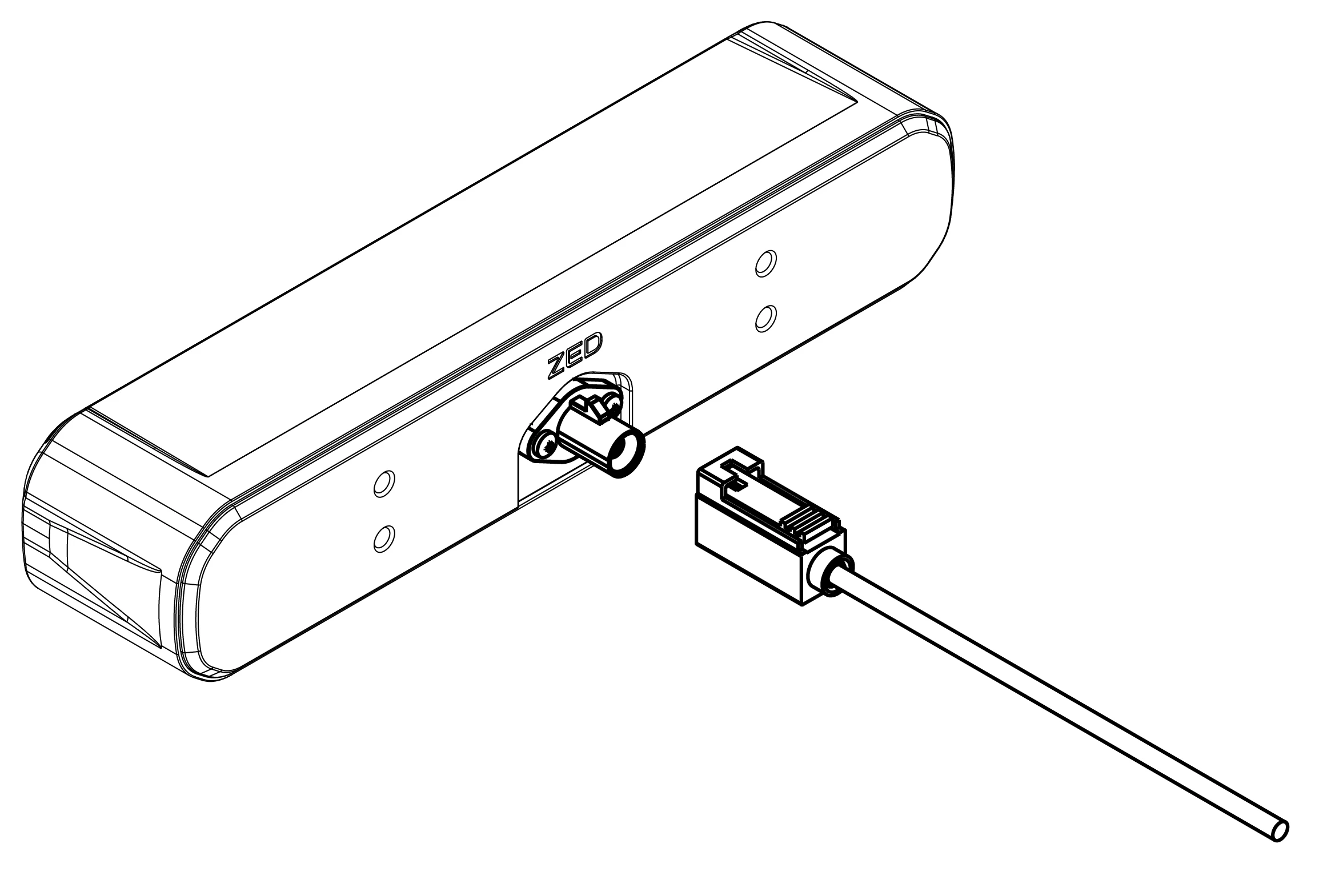
When using the ZED X One 4K, only two of them are supported simultaneously, or one ZED X One 4K together with one Global Shutter model (stereo or monocular), respecting the index rule: the 4K model must always be connected to the lower-ranked port index.
When using 4x cameras on a single 4-wire GMSL2 Fakra connector, the maximum frame rate is limited to 30 FPS for HD Resolutions or 60 FPS for SVGA resolution. Please refer to the multi-camera guide for details on the allowed multi-camera configurations.
Install on a wall with brackets
Screw the brackets to the case:
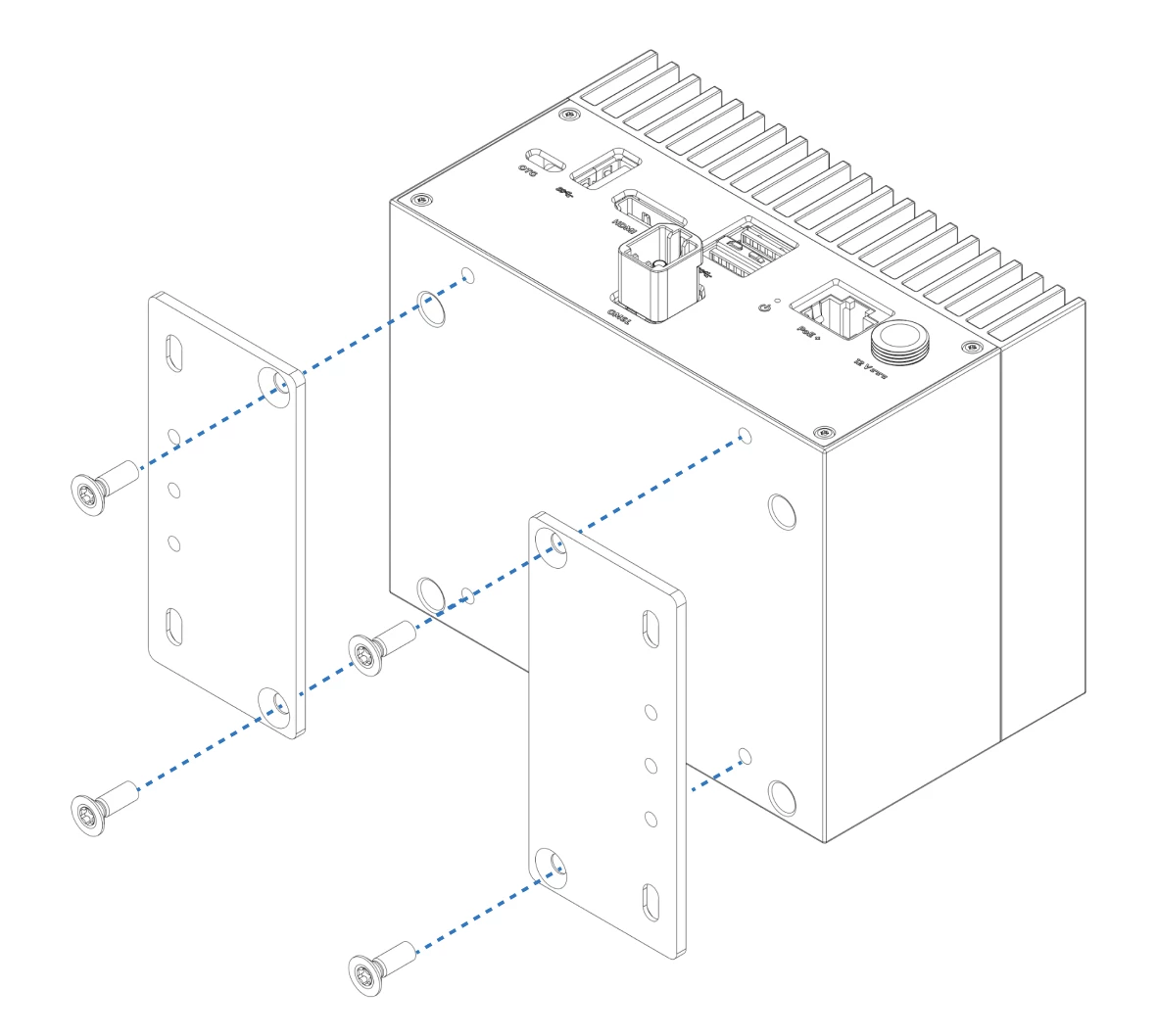
Screw the ZED Box to the wall:
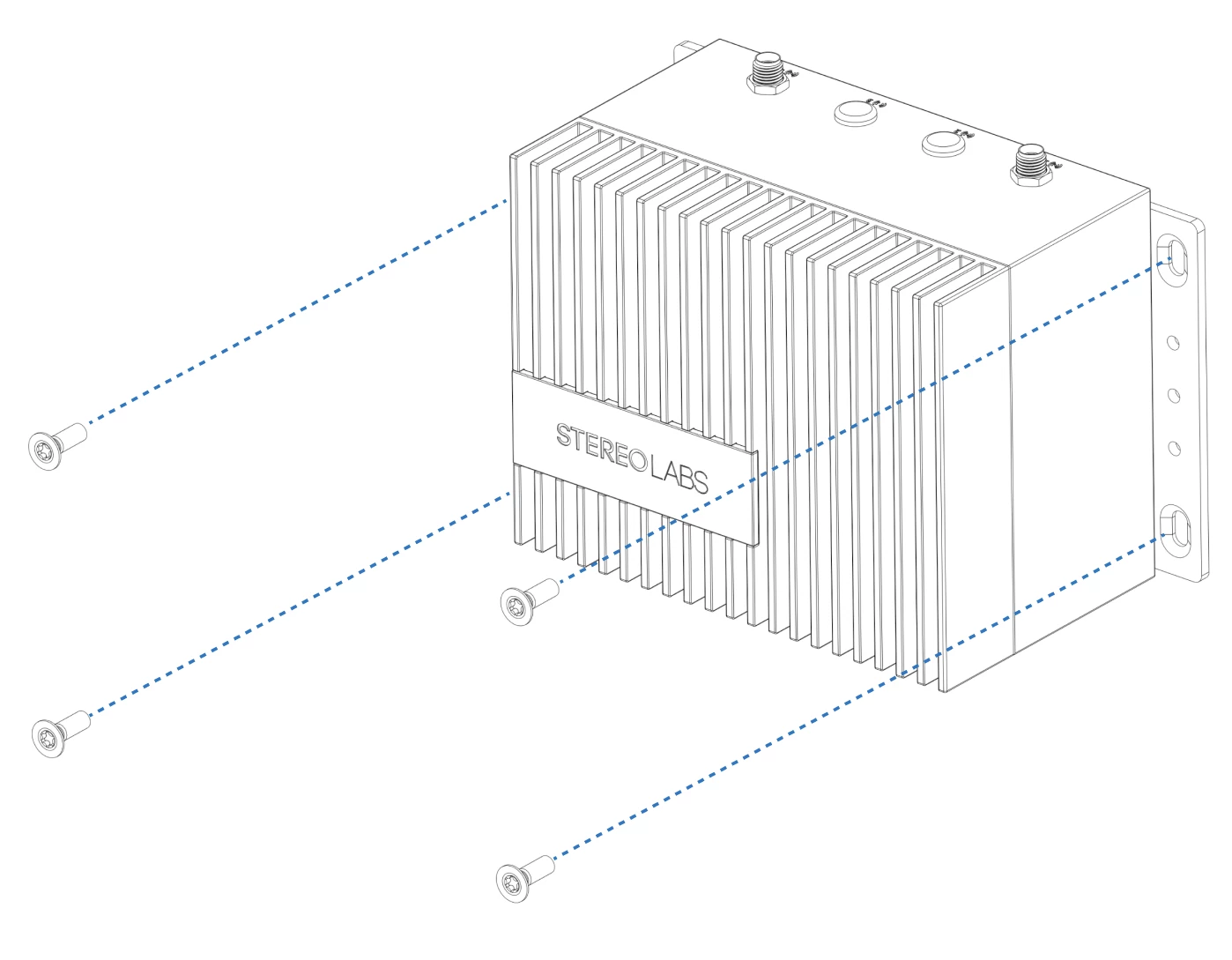
Screws for the wall are not included.
Add a new user
Open a new terminal console [Ctrl+Alt+t].
You can add a new user with the command:
Set the password for the new user:
Log out of the current user account, then log in with the newly created one.
Open a new terminal console [Ctrl+Alt+t] and add the new user to the required user groups:
Reboot the device and log in with the new credentials to ensure everything is working properly.