Using Object Detection and Tracking with ROS 2
The Object Detection module can be configured to use one of the available detection models:
The MULTI_CLASS_BOX and PERSON_HEAD_BOX modes use internal models that are provided and downloaded automatically by the SDK.
The CUSTOM_YOLOLIKE_BOX_OBJECTS mode allows you to load a custom ONNX YOLO model. The section Using Custom Object Detection with ROS 2 shows an example of how to export this model from a trained PyTorch model. This process must be done only once.
The result of the detection is published using a new custom message of type zed_interfaces/ObjectsStamped defined in the package zed_interfaces.
Enable Object Detection
Object detection can be started automatically when the ZED Wrapper node starts by setting the parameter object_detection.od_enabled to true in the file common_stereo.yaml.
It is also possible to start the Object Detection processing manually by calling the service ~/enable_obj_det with the parameter True.
In both cases, the Object Detection processing can be stopped by calling the service ~/enable_obj_det with the parameter False.
See the services documentation for more info.
The first time you run the ZED node with the object detection configuration, the SDK will optimize the model for the GPU used on the host device.
This process may take a long time, depending on the model size and the power of the GPU used. The optimized model will be saved in the /usr/local/zed/resources folder and reused in subsequent runs, which will no longer require the optimization process.
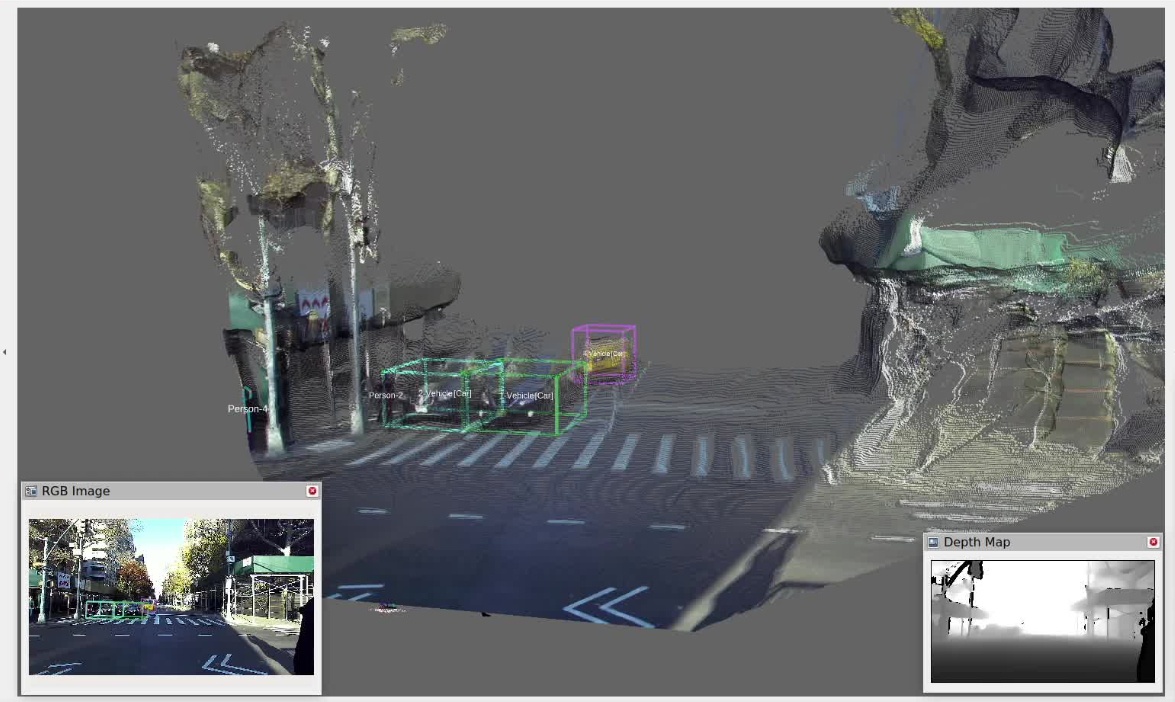
Object Detection results in RViz 2
To visualize the results of the Object Detection processing in RViz 2, the new ZedOdDisplay plugin is required. The plugin is available in the zed-ros2-examples GitHub repository and can be installed following the online instructions.
The source code of the plugin is a valid example of how to process the data of the topics of type zed_interfaces/ObjectsStamped.
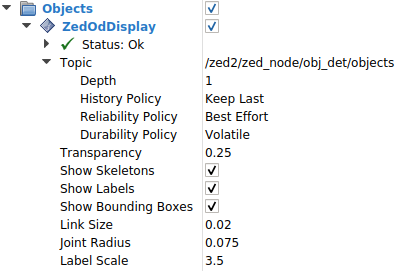
Parameters:
Topic: Selects the object detection topic to visualize from the list of available images in the combo box.Depth: The depth of the incoming message queue.History policy: Set the QoS history policy.Keep Lastis suggested for performance and compatibility.Reliability Policy: Set the QoS reliability policy.Best Effortis suggested for performance and compatibility.Durability Policy: Set the QoS durability policy.Volatileis suggested for compatibility.Transparency: the transparency level of the structures composing the detected objects.Show skeleton: Not used.Show Labels: enable/disable the visualization of the object label.Show Bounding Boxes: enable/disable the visualization of the bounding boxes of the detected objects.Link Size: the size of the bounding boxes’ corner lines.Joint Radius: the radius of the spheres placed on the corners of the bounding boxes.Label Scale: the scale of the label of the object.