

ROS 2 - ZED Mono Node
ROS 2 - ZED Mono Node
The easiest way to start a ZED ROS 2 node for a monocular camera is by using the command line:
where <camera model> must be replaced with one of zedxonegs or zedxone4k.
Published Topics
The ZED node publishes data to the following topics:
-
Status
~/status/heartbeat: heartbeat signal to monitor if the node is alive from other nodes (custom message).~/status/svo: status of the SVO playback (only advertised when an SVO file is used as input).
-
Image streams
The image topic names are created using the following naming convention:
~/<sensor_type>/<color_model>/<rect_type>/imageStarting from version 5.1.0 of the ROS 2 Wrapper the new convention replaces the previous formats such as
~/<sensor_type>/image_<rect_type>_<color_model>and~/<sensor_type>_<rect_type>/image_<rect_type>_<color_model>(e.g.,~/left/image_rect_color,~/rgb_raw/image_raw_gray). Please update your launch files and scripts to use the new topic names.- RGB channel
~/rgb/color/rect/image: Color rectified image.~/rgb/color/rect/camera_info: Color camera calibration data.~/rgb/gray/rect/image: Grayscale rectified image.~/rgb/gray/rect/camera_info: Grayscale camera calibration data.~/rgb/color/raw/image: Color unrectified image.~/rgb/color/raw/camera_info: Color raw calibration data.~/rgb/gray/raw/image: Grayscale unrectified image.~/rgb/gray/raw/camera_info: Grayscale raw calibration data.
- RGB channel
-
Sensors data
~/imu/data~/imu/data_raw~/temperature~/left_cam_imu_transform
Image Transport
The ROS 2 wrapper supports the stack image_transport introduced with ROS 2 Crystal Clemmys.
Starting from version 5.3 of the ROS 2 Wrapper, image messages are published through rclcpp::TypeAdapter for more efficient handling:
- The base
rawtopic is handled by aTypeAdapterpublisher. Intra-process subscribers (e.g., other nodes running in the same component container) receive aStampedSlMatobject — a wrapper around the nativesl::Mat— directly, without any serialization overhead. Inter-process subscribers transparently receive a standardsensor_msgs/msg/Imagemessage thanks to the automaticTypeAdapterconversion. - The transport-specific variants are handled by an
image_transportpublisher. Itsrawtransport is disabled to avoid publishing duplicate messages, since therawstream is already provided by theTypeAdapterpublisher described above.
To prevent silent data corruption caused by incompatible plugin/encoding combinations, the advertised image transports are filtered by topic type. Visual image topics (color and grayscale images) advertise only:
compressed: JPEG or PNG compressed imagetheora: Ogg Theora compressed imagezstd: lossless Zstandard-compressed image (available starting with ROS 2 Jazzy Jalisco)
For proper association between images and their corresponding camera information, the ZED ROS 2 Wrapper also publishes camera_info topics for all compressed image streams:
~/rgb/color/rect/image/camera_info~/rgb/gray/rect/image/camera_info~/rgb/color/raw/image/camera_info~/rgb/gray/raw/image/camera_info
When the isaac_ros_nitros package is installed and NITROS is not disabled via the debug.disable_nitros parameter, NITROS publishers take priority and neither the TypeAdapter nor the image_transport publishers are created. Please refer to the dedicated section about NVIDIA® Isaac ROS Nitros for more details.
NVIDIA® Isaac ROS Nitros
The ZED ROS 2 Wrapper supports the NVIDIA® Isaac™ ROS Nitros package for zero-copy transport of ROS messages using NVIDIA® GPUDirect® RDMA.
NVIDIA® Isaac ROS Nitros integration is enabled and used only if the required packages are manually installed. They are not added as a dependency because this is an optional feature.
Starting from version 5.3 of the ROS 2 Wrapper, Intra-Process Communication (IPC) is handled automatically: it is disabled when NITROS is enabled and enabled when NITROS is disabled. You can use the debug.disable_nitros parameter to disable NITROS and force IPC to be enabled if needed.
For more information about the installation and usage of the NVIDIA® Isaac™ ROS packages, please refer to the dedicated section of the documentation: ZED Isaac™ ROS Integration Overview.
QoS profiles
All the topics are configured by default to use the following ROS 2 QoS profile:
- Reliability: RELIABLE
- History (Depth): KEEP_LAST (10)
- Durability: VOLATILE
- Lifespan: Infinite
- Deadline: Infinite
- Liveliness: AUTOMATIC
- Liveliness lease duration: Infinite
Read the official ROS 2 documentation about the QoS and the related settings for details.
The QoS settings can be modified by changing the relative parameters in the YAML files, as described in this official ROS 2 design document.
When creating a subscriber, be sure to use a compatible QOS profile according to the following tables:
Compatibility of QoS durability profiles:
Compatibility of QoS reliability profiles:
In order for a connection to be made, all of the policies that affect compatibility must be compatible. For instance, if a publisher-subscriber pair has compatible reliability QoS profiles, but incompatible durability QoS profiles, the connection will not be made.
For a detailed list of all the compatibility settings, please refer to the official ROS 2 documentation.
Configuration parameters
Specify your launch parameters in the common_mono.yaml, zedxonegs.yaml, and zedxone4k.yaml files available in the folder zed_wrapper/config.
General parameters
Namespace: general
common_mono.yaml
zedxonegs.yaml, and zedxone4k.yaml
SVO input parameters
Namespace: svo
common_mono.yaml
Streaming server parameters
Namespace: stream_server
common_mono.yaml
Video parameters
Namespace: video
common_mono.yaml
* Dynamic parameter
zedxone4k.yaml
Sensors parameters
Namespace: sensors
common_mono.yaml
* Dynamic parameter
Advanced parameters
Namespace: advanced
These are advanced threading parameters. Do not modify them unless you are confident of what you are doing. The SCHED_FIFO and SCHED_RR scheduling policies require running with sudo. Reference: sched(7).
common_mono.yaml
Debug parameters
Namespace: debug
common_mono.yaml
Dynamic parameters
The ZED node lets you reconfigure many parameters dynamically during the execution of the node. All the dynamic parameters are indicated with a * in the list above and with the tag [DYNAMIC] in the comments of the YAML files.
You can set the parameters using the CLI command ros2 param set, e.g.:
if the parameter is set successfully, you will get a confirmation message:
In the case you tried to set a parameter that’s not dynamically reconfigurable, or you specified an invalid value, you will get this type of error:
and the ZED node will report a warning message explaining the error type:
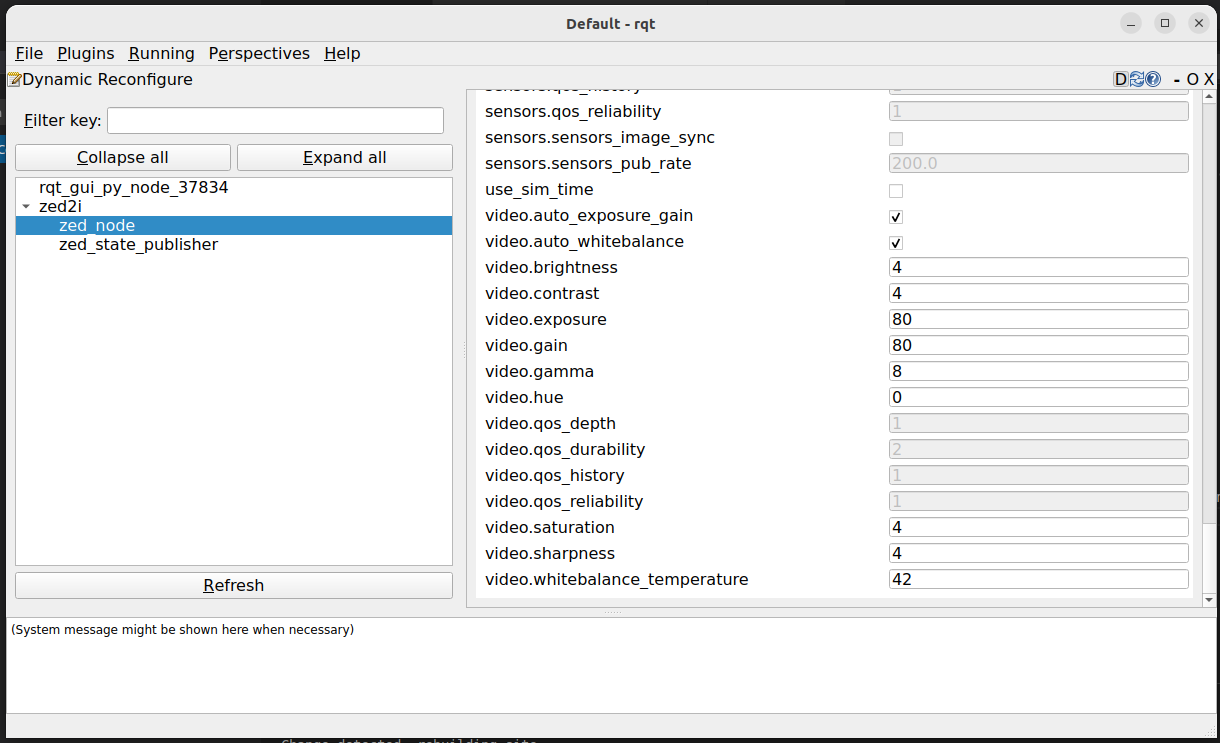
You can also use the Configuration -> Dynamic Reconfigure plugin of the rqt tool to dynamically set parameters by using a graphic interface.
Transform frames
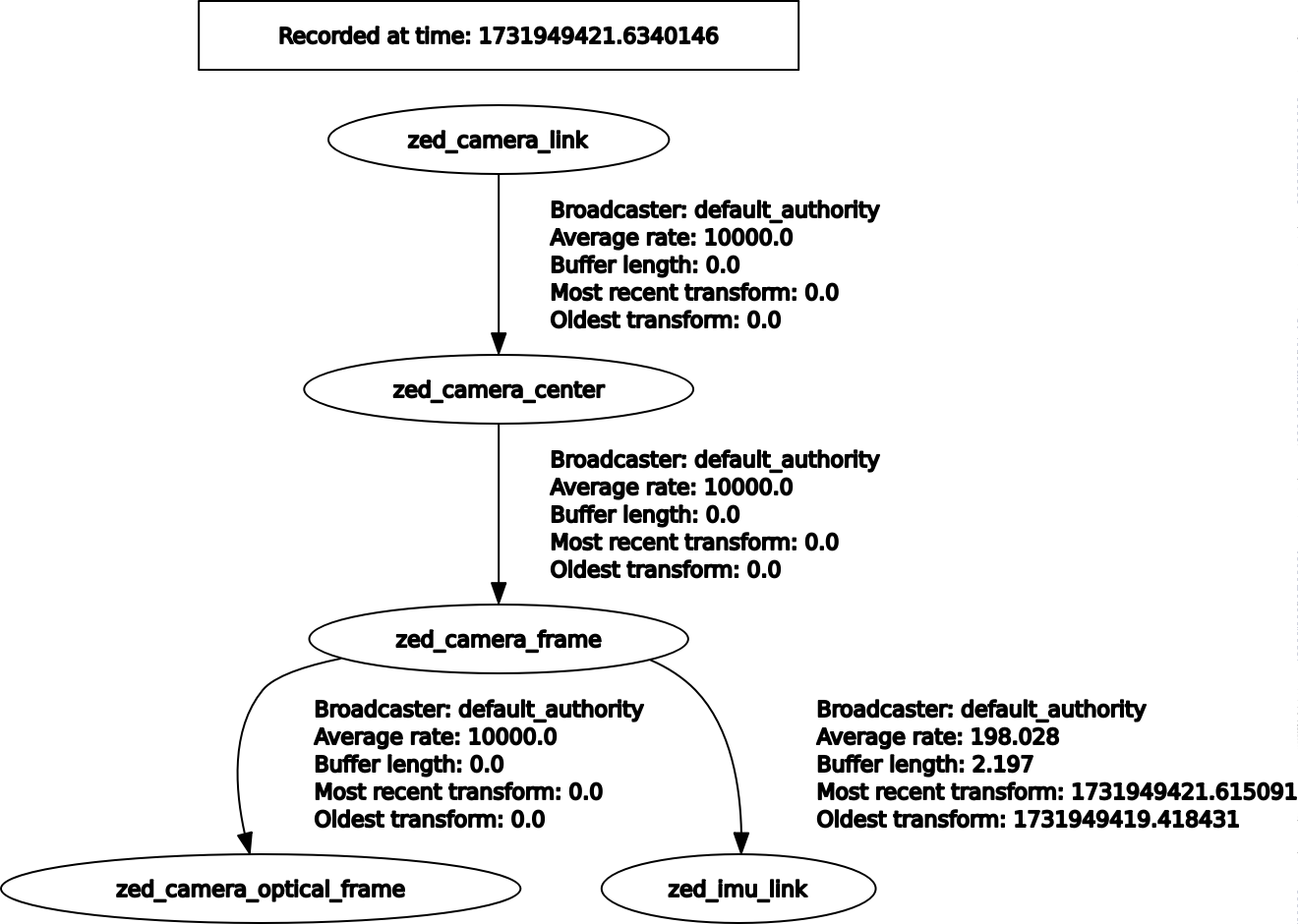
The ZED ROS 2 wrapper broadcasts multiple coordinate frames that each provides information about the camera’s position and orientation. If needed, the reference frames can be changed in the launch file.
<camera_name>_camera_linkis the current position and orientation of the ZED base center. It corresponds to the bottom central fixing hole.<camera_name>_camera_centeris the current position and orientation of ZED middle baseline, determined by visual odometry and the tracking module.<camera_name>_camera_frameis the position and orientation of the ZED’s CMOS sensor.<camera_name>_camera_frame_opticalis the position and orientation of the ZED’s camera optical frame.<camera_name>_imu_linkis the origin of the inertial data frame (not available with ZED).
Services
The ZED node provides the following services:
~/enable_streaming: enable/disable a local streaming server.
Services can be called using the rqt graphical tool by enabling the plugin Plugins -> Services -> Service caller.
It is possible to call a service also by using the CLI command ros2 service call.
For example, to start the local streaming server:
and the service server will reply:
Assigning a GPU to a camera
To improve performance, you can specify the gpu_id of the graphic card that will be used for the depth computation in the common_mono.yaml configuration file. The default value (-1) will select the GPU with the highest number of CUDA cores. When using multiple ZEDs, you can assign each camera to a GPU to increase performance.