

Using the Object Detection API
Object Detection Configuration
To configure the object detection module, use ObjectDetectionParameters at initialization and ObjectDetectionRuntimeParameters to change specific parameters during use.
Various Object Box detection models are available in the ZED SDK:
- the general purpose object detection including
OBJECT_DETECTION_MODEL::MULTI_CLASS_BOX,OBJECT_DETECTION_MODEL::MULTI_CLASS_BOX_MEDIUMandOBJECT_DETECTION_MODEL::MULTI_CLASS_BOX_ACCURATE. You can choose one of them depending on desired performance/accuracy. These models are able to detect multiple object classesOBJECT_CLASS. - the head detection
OBJECT_DETECTION_MODEL::PERSON_HEAD_BOX. It is specialized in person head detection and tracking. It may be beneficial for applications in a crowded scene where persons in the background are merely detected by the general-purpose person detection model. We have separated this model from the general-purpose object detection model and have brought some special optimization and improvements to increase detection and tracking accuracies. It only detects a single classOBJECT_CLASS::PERSONwith subclassOBJECT_SUBCLASS::PERSON_HEAD.
You can use detection_parameters.detection_model to set the detection model:
If you want to track objects’ motion within their environment, you will first need to activate the positional tracking module. Then, set detection_parameters.enable_tracking to true.
With these parameters configured, you can enable the object detection module:
Object Detection has been optimized for ZED Mini, ZED 2i, ZED X, ZED X Mini, and ZED X Nano and uses the camera motion sensors for improved reliability. Therefore the Object Detection module requires a ZED Mini, ZED 2i, ZED X, ZED X Mini, and ZED X Nano and Inertial sensors cannot be disabled when using the module.
Getting Object Data
To get the detected objects in a scene, get a new image with grab(...) and extract the detected objects with retrieveObjects(). The objects’ 2D positions are relative to the left image, while the 3D positions are either in the CAMERA or WORLD reference frame depending on RuntimeParameters.measure3D_reference_frame (given to the grab() function).
The sl::Objects class stores all the information regarding the different objects present in the scene in the object_list attribute. Each individual object is stored as a sl::ObjectData with all information about it, such as bounding box, position, mask, etc. All objects from a given frame are stored in a vector within sl::Objects. sl::Objects also contains the timestamp of the detection, which can help connect the objects to the images.
You can iterate through the objects as follows:
Each detected object can be accessed by using its ID as follows:
Accessing Object Information
Once an sl::ObjectData is retrieved from the object vector, you can access information such as its ID, position, velocity, label, and tracking_state:
You can also access the confidence of the detection for each object. This confidence depicts the probability of a detected object to really be present in the scene. Therefore, this confidence can be used to post-filter the detected objects. For example, you can ignore objects with confidence less than 10%:
Getting 3D Bounding Boxes
Each detected object contains two bounding boxes: a 2D bounding box and a 3D bounding box. The 2D bounding box is defined in the image frame while the 3D bounding box is provided with the depth information.
The 2D bounding box is represented as four 2D points starting from the top left corner of the object. The 3D bounding box is represented by eight 3D points starting from the top left front corner, as follows:
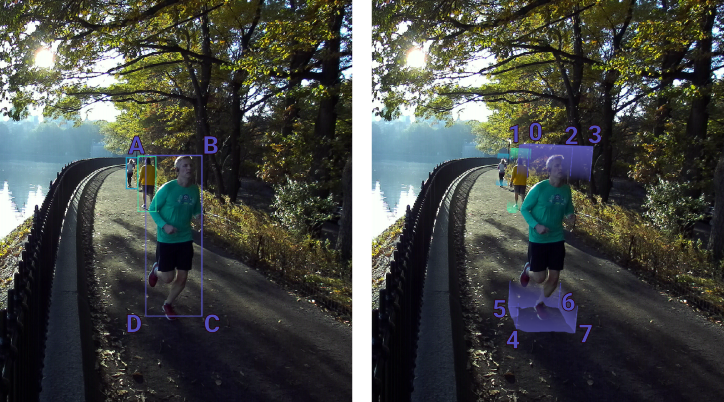
The 2D and 3D bounding boxes are accessible in sl::ObjectData:
Getting the Object Mask
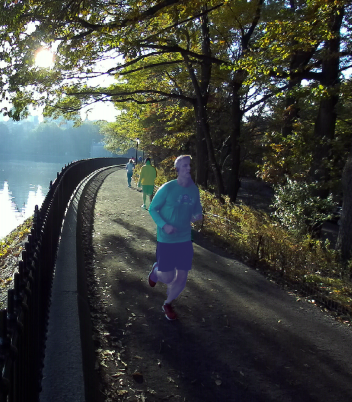
Each object can also be represented by its mask. The mask includes the pixels within the 2D bounding box that belong to the object. Pixels from the object itself are set to 255 while the pixels of the background are set to 0. You can access the mask of an object with sl::Mat object_mask = object.mask;.
Code Example
For code examples, check out the Tutorial and Sample on GitHub.