

Developing with ZED X on a PC
When working on projects for embedded platforms such as Jetsons, there may be situations where you prefer to perform development tasks on a Desktop machine. To assist you in this scenario, we have provided the following guidelines.
ZED SDK Streaming
By streaming the data over the local network, any ZED SDK application can access a low-latency stream, allowing developers to work with the data as if it were a camera directly connected to their machine.
In this article, we will guide you through the steps required to set up and connect your machine for ZED SDK Streaming.
You can learn more about the ZED SDK Streaming and how it works in the Local Streaming section.
Prerequisites
Make sure that you have performed the following before starting this guide:
- Set up your NVIDIA® Jetson™ device for ZED X using this guide.
- Have access to the NVIDIA® Jetson™ device physically or remotely via SSH.
- Installed the ZED SDK on your local machine and on the NVIDIA® Jetson™ device.
Setting up the NVIDIA® Jetson™ device for ZED SDK Streaming
To enable ZED SDK Streaming, the remote device must run an application that streams ZED data.
This application is provided in a sample from the ZED SDK. Navigate to the corresponding directory and run the application with the following commands:
The following log will be displayed, giving the port number that the device is streaming to:
Don’t hesitate to take a look at the source code of the sample, which gives an example to run ZED SDK Streaming in your own applications.
Connect to the stream on your local machine
Now that the device is streaming data, you can visualize it live using the ZED SDK tools. Let’s run ZED_Depth_Viewer:
In the top left corner, click on the icon:

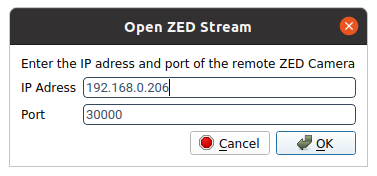
The following window will open. Enter the IP of the NVIDIA® Jetson™ device, as well as the port used by the sender (by default: 30000).
After a few moments, you should have a live view of the ZED camera streaming from the device!
Connect using the ZED SDK
Now that we have the stream up and running, let’s use it in our ZED SDK application.
Say we have the following C++ application which retrieves images from a ZED camera connected physically to the host machine.
To change the input to a ZED SDK stream, the only change required is to change the input in initParameters:
Good job! You can now develop on your local PC while using a ZED camera on a remote device.