

ZED X - GMSL2
ZED X - GMSL2
If you recently purchased a ZED X, a ZED X Mini, or a ZED X Nano camera, congratulations! This guide aims to help you become acquainted with the ZED X camera and to give you the essential information you need to start using its 3D depth sensing capabilities to their full potential. How do I connect my ZED X camera? How do I use the GMSL2 capture card? How can I develop on my local PC with the ZED X? If you are asking yourself these questions, this guide is here to help.
About ZED X, ZED X Mini, and ZED X Nano
The ZED X camera is a professional-grade camera designed specifically for robotic applications in production environments. With its IP67-rated Global Shutter and high-performance IMU, it is built to withstand harsh conditions and provide reliable performance.
Only ZED X and ZED X Mini are IP67 rated. ZED X Nano has no IP rating; it is designed for indoor use.
The camera’s advanced Neural Depth Engine 2 technology produces highly accurate depth maps, even in challenging lighting and untextured environments. Additionally, its secure GMSL2 connection allows for low-latency video transmission without EMI interference, making it ideal for integration into robotics platforms.
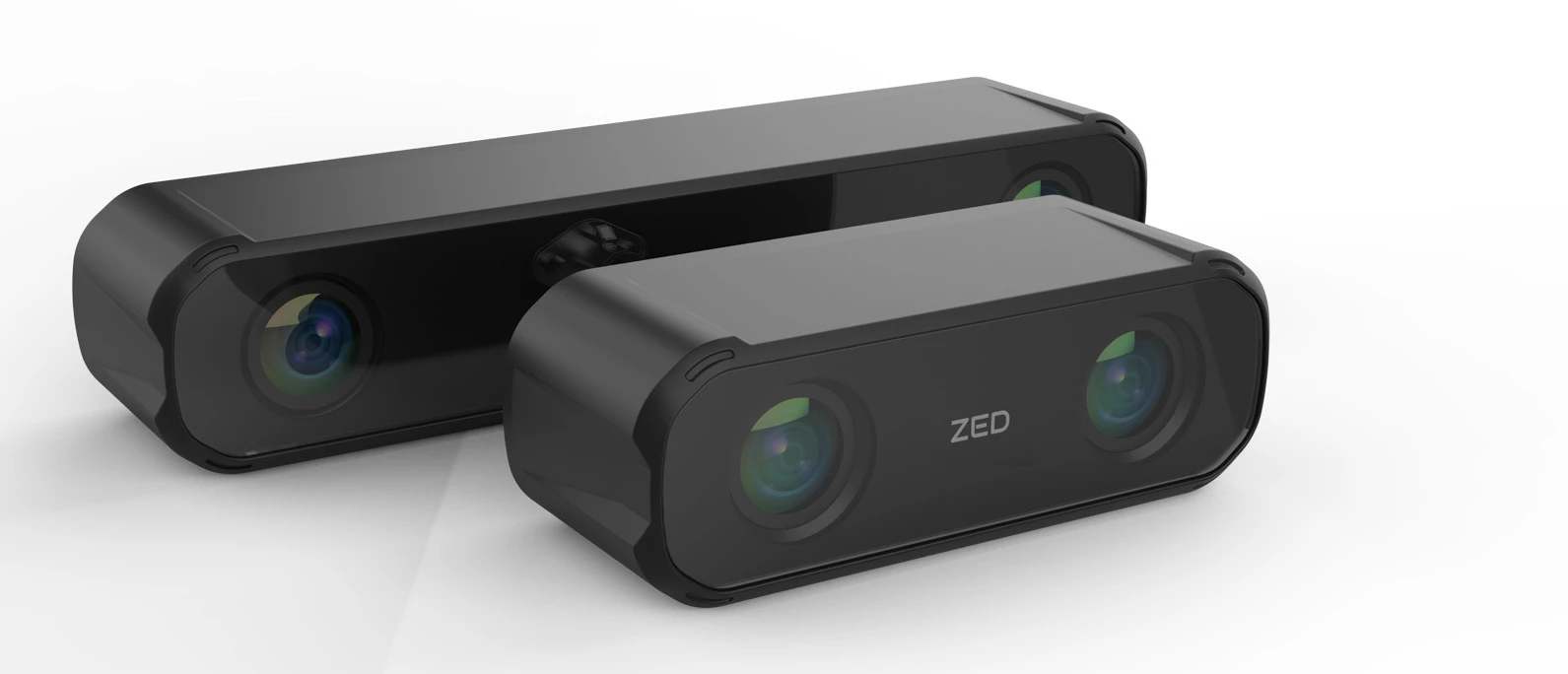
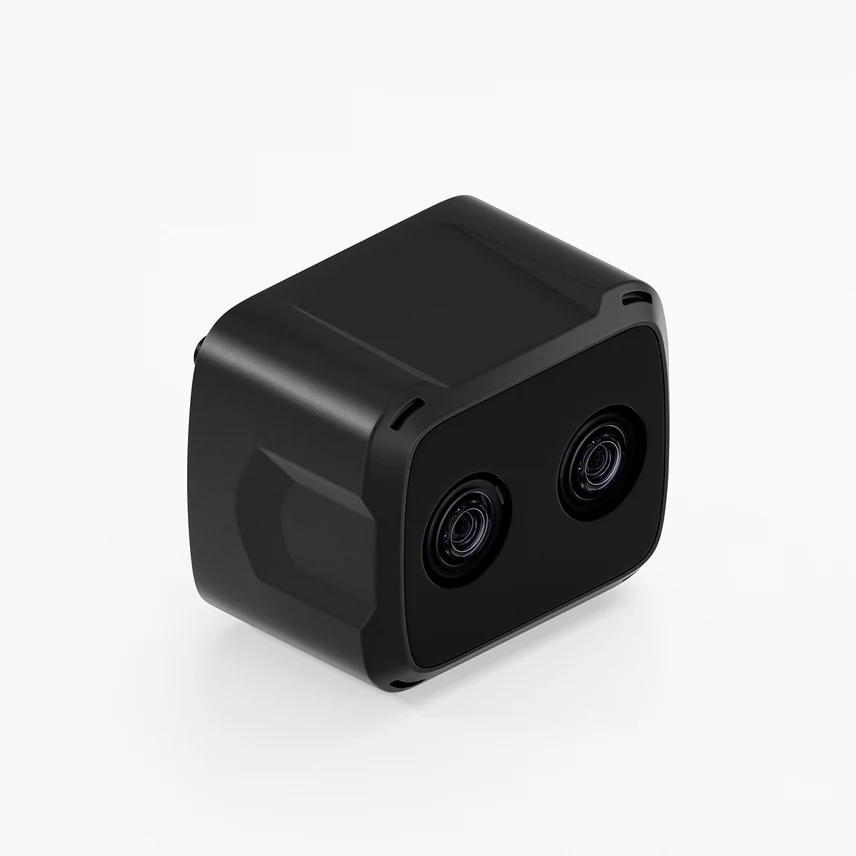
Setting up your system for ZED X, ZED X Mini, and ZED X Nano
If you are planning to use the ZED X, ZED X Mini, or ZED X Nano cameras, it is essential that you have the proper hardware in place to support the camera’s GMSL2 connection.
The ZED X, ZED X Mini, and ZED X Nano cameras use a GMSL2 connection, which is not compatible with USB. To process video at high bandwidth and low latency in a reliable manner, specific hardware is required, and therefore the ZED X, ZED X Mini, and ZED X Nano are not compatible with all host machines.
Before proceeding, please ensure that you have followed the “ZED Link capture cards” documentation to correctly configure your NVIDIA® Jetson™ device for the GMSL2 camera.
Developing with ZED X on a PC
When working on projects for embedded platforms such as Jetsons, there may be situations where you prefer to perform development tasks on a Desktop machine. The ZED SDK LocalStreaming function enables developers to use the ZED X on their local PC as if it were connected directly to the computer. To set up this capability, follow the guide below to stream ZED X data to your computer.
Using ZED X with a Virtual Display
For remote access to your ZED X system, running on an NVIDIA® Jetson™ device, a virtual display lets you run GUI applications and development tools without a physical monitor or HDMI dongle. This is ideal for headless robotic setups where you need to use the ZED SDK remotely through VNC, NoMachine, or X11 forwarding.
Read more about setting up a virtual display for your ZED X system in our dedicated guide:
Advanced: Raw NV12 Buffer Access
For performance-critical applications like GStreamer pipelines or NVIDIA DeepStream, the ZED SDK offers a zero-copy API to access raw NV12 buffers directly from the capture pipeline. This allows low-latency integration with NVIDIA multimedia frameworks by avoiding unnecessary memory copies.
Read more in our dedicated guide on how to access raw NV12 buffers from the ZED X camera:
Troubleshooting
If you have any issues while setting up your ZED X, please refer to our Troubleshooting guide.
Docker
You can find a guide to use the ZED X, ZED X Mini, and ZED X Nano in Docker on this page.