

Hardware Encoding Bridge for ROS 2
When transmitting data to different nodes across multiple machines in the same ROS 2 network, you can leverage the ZED SDK’s Local Streaming module to optimize bandwidth usage and data transfer throughput.
The Local Streaming module encodes ZED data into a single compressed stream for network transmission, replacing multiple ROS 2 topics with a single raw data stream. This approach is particularly beneficial when working with high-resolution video streams, point clouds, or bandwidth-constrained networks.
The receiving machine must have a compatible NVIDIA® GPU that supports hardware decoding. Both encoding and decoding are GPU-accelerated, significantly reducing CPU load and improving overall performance.
Architecture
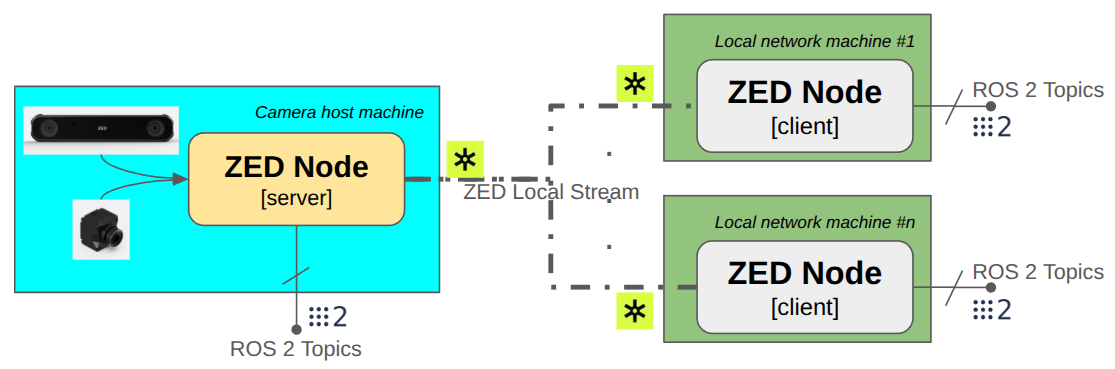
This configuration requires a ZED Wrapper node to act as a Streaming Server and one or more ZED Wrapper nodes configured as Streaming Clients that connect to the server instead of directly to a physical ZED camera.
Client nodes operate as standard ZED Wrapper nodes with independent configurations. Instead of connecting to a physical camera, they connect to the server node’s network stream. Each client can independently enable or disable topics, activate features, and set parameters, regardless of the server node’s configuration or other client nodes.
Refer to the ZED Wrapper documentation for more information on configuring node parameters.
Independent client configuration
Each client node operates independently and can be configured to enable only the features and topics needed for its specific use case. This selective processing significantly reduces network bandwidth and computational load.
Example scenario: A remote monitoring station displays camera images and point clouds to an operator.
Client-side optimization:
- The client generates rectified images and point clouds locally using the ZED SDK
- Unnecessary features (Positional Tracking, Object Detection) can be disabled
- Only the compressed stream is transmitted over the network
Server-side optimization:
- Depth processing can be disabled if not required locally
- Reduced CPU/GPU load on the server machine
- Maximized data throughput for streaming
This architecture allows each node to optimize resource usage based on its specific requirements while maintaining full access to ZED SDK capabilities.
Start the server
Configure the ZED Wrapper node to act as a Streaming Server by enabling the Local Streaming module and setting the desired encoding parameters.
There are two methods to start the Local Streaming server:
- Automatically at startup: Set the
stream_server.stream_enabledparameter totrueinconfig/common_stereo.yaml(for stereo cameras) orconfig/common_mono.yaml(for monocular cameras). - Manually at runtime: Call the
enable_streamingservice.
Open a terminal on the server machine and launch the ZED Wrapper node:
If you have not modified the configuration file, manually start the streaming server at runtime by opening a new terminal and calling the enable_streaming service:
To confirm the server is running, check the node logs for a message indicating the streaming server has started:
The communication parameters of the streaming server are loaded from the config/common_stereo.yaml (for stereo cameras) or config/common_mono.yaml (for monocular cameras) files when the node starts:
stream_server.codec: Hardware encoding codec for the stream. Supported codecs:H264,H265.stream_server.port: Port used for streaming. Must be an even number; odd numbers will be rejected.stream_server.gop_size: Maximum distance between IDR/I-frames. Higher GOP size results in more efficient compression on static scenes but increases latency.stream_server.adaptative_bitrate: Whentrue, bitrate adjusts based on dropped packets during streaming. Bitrate can vary between [bitrate/4, bitrate].stream_server.chunk_size: Size of each chunk in bytes. Lower values reduce packet loss impact but generate more chunks. Higher values can decrease latency. Range:[1024 - 65000]stream_server.target_framerate: Output framerate for streaming. Must be equal to or below the camera framerate. Allowed values: 15, 30, 60, or 100 (if supported). Other values are discarded and the camera FPS is used.
Stop the server
Stop the server at any time by calling the enable_streaming service:
The node logs will confirm the streaming server has stopped:
Start the clients
Once the streaming server is running, configure one or more ZED Wrapper nodes to connect as Streaming Clients.
To configure a client node, use the following launch parameters:
stream_address: Connection address of the input streaming server. This is required.stream_port: Connection port of the input streaming server. This is optional, default is30000.
Open a new terminal on the client machine and launch the ZED Wrapper node:
Replace <server_ip_address> with the IP address of the machine running the streaming server and <server_port> with the configured port number (default: 30000).
Obtain the server IP address by running the following command on the server machine:
Or use this command for detailed output:
You can also use the rviz launch file to visualize data received from the streaming server:
Once started, the client node connects to the streaming server and begins receiving the encoded data stream. The node logs will confirm the connection has been established:
Server side:
Client side:
Conclusion
The Hardware Encoding Bridge provides an efficient solution for distributing ZED camera data across ROS 2 networks by leveraging GPU-accelerated encoding and decoding. This architecture reduces network bandwidth requirements, lowers CPU usage, and enables flexible deployment of multiple client nodes with independent configurations.
Key benefits:
- Reduced bandwidth: Single compressed stream replaces multiple ROS 2 topics
- GPU acceleration: Hardware encoding/decoding minimizes CPU overhead
- Flexible deployment: Each client node can independently configure required features and topics
- Scalability: Multiple clients can connect to a single streaming server
This approach is ideal for scenarios involving high-resolution video, point clouds, or bandwidth-constrained networks where traditional multi-topic transmission would be impractical.